Use ViewMyFit as your virtual dressing room. Upload a full-body photo of yourself or create a reusable AI avatar, then preview clothes together before you shop.
A style preview, not a size guarantee
AI can help you explore colours, outfit combinations, and the overall look. It can also change facial details, fabric textures, garment proportions, or fit. A generated image is not a body measurement or proof that a size will fit. Always check the retailer’s size chart, product details, and return policy before buying.
Prepare a useful photo for virtual try-on
Your reference photo and the clothing images give the AI its starting point. A clear input makes the result easier to assess, but does not guarantee an exact likeness or fit. Only upload photos of yourself that belong to you.
AI-generated illustrations showing photo preparation, not uploaded user photos or actual try-on results.
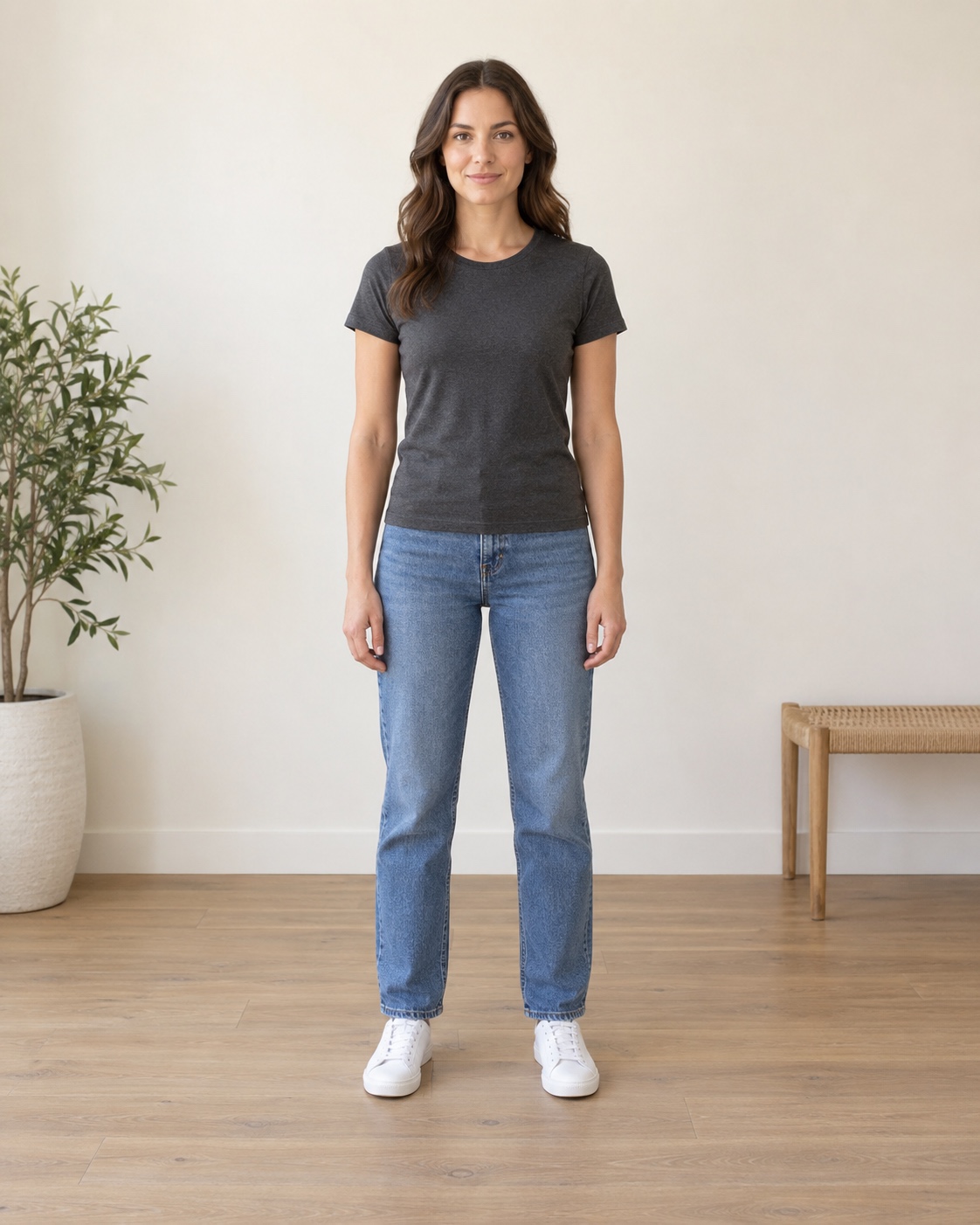
Use a clear full-body view
- Keep your head and feet inside the frame
- Face the camera with your arms relaxed
- Avoid a mirror or object hiding your body
Choose an unobstructed photo with enough space around you. If your head or shoes are already cropped in the original, take another photo rather than expecting the AI to reconstruct them accurately.
Keep in mind
For an AI avatar, use a clear front-facing face photo. The optional side-profile photo should be a real photo of you, not a second person or an AI substitute.

Make lighting and clothing easy to read
- Use even light without deep shadows
- Choose a simple, uncluttered background
- Avoid heavy filters and motion blur
Wear ordinary clothes that leave your outline easy to see. There is no need to upload an intimate photo. Oversized layers, strong shadows and busy backgrounds can make the reference harder to interpret.
Keep in mind
Check that your face is sharp before uploading. The generated image can still change facial features, proportions or skin tone, even with a good reference.
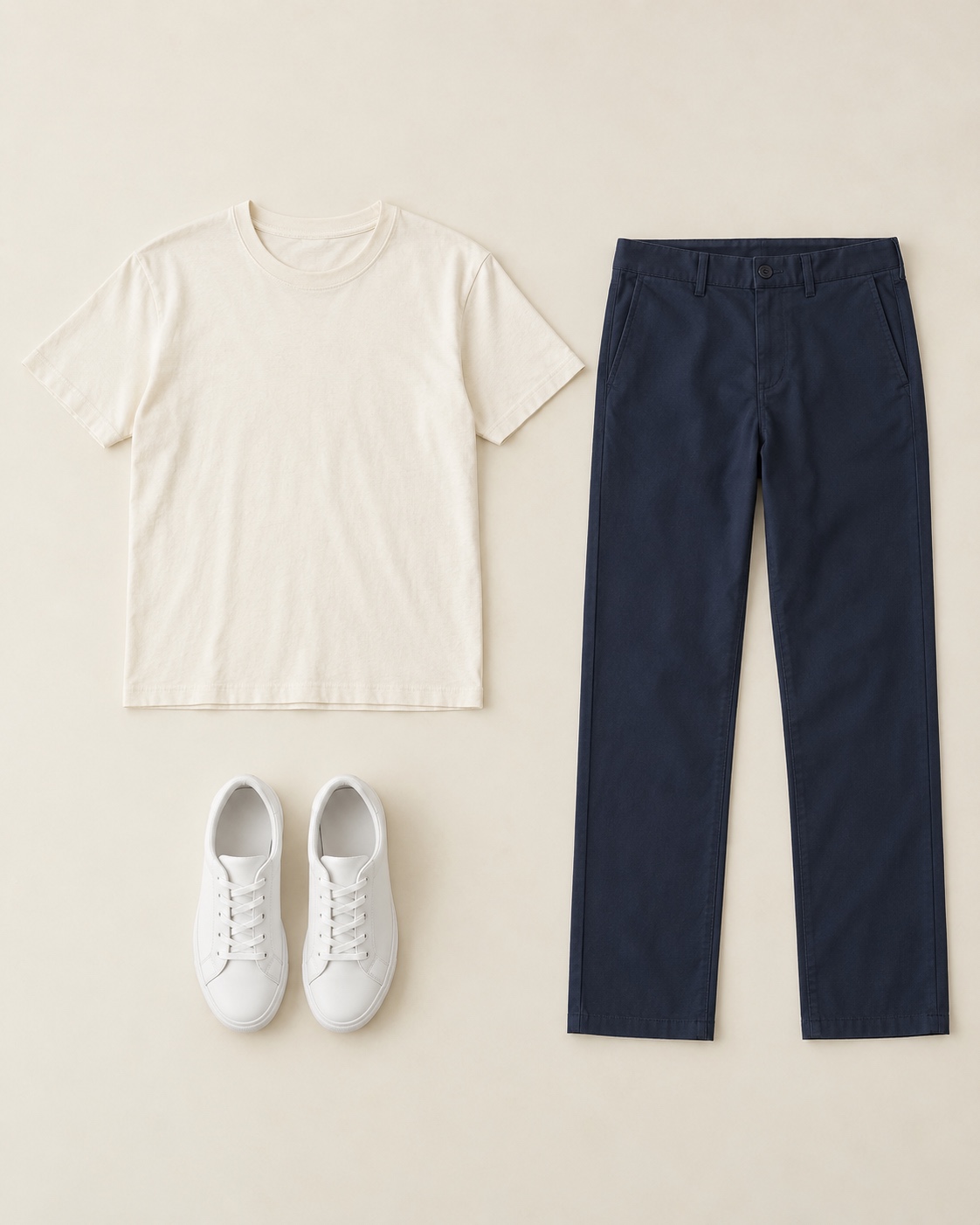
Start with a simple outfit
- Use clear images of the exact garments
- Begin with a top, bottoms and shoes
- Add accessories after comparing the base look
If the preview combines pieces incorrectly, simplify the selection and try again within your plan’s allowance. Compare one change at a time using the same reference photo.
Keep in mind
Logos, patterns and small details may be distorted. Always compare the generated preview with the original product photos before buying.
If your preview does not look right
- Cropped head or feet: check the original framing and use a complete full-body photo.
- Face or side profile looks different: check your reference photos; the AI cannot guarantee an exact identity match.
- Missing or mixed-up clothing: use clearer garment images and fewer pieces in the next preview.
- Unsure about size or comfort: consult the retailer’s measurements and return policy. Generating again will not verify physical fit.
Start with my photo